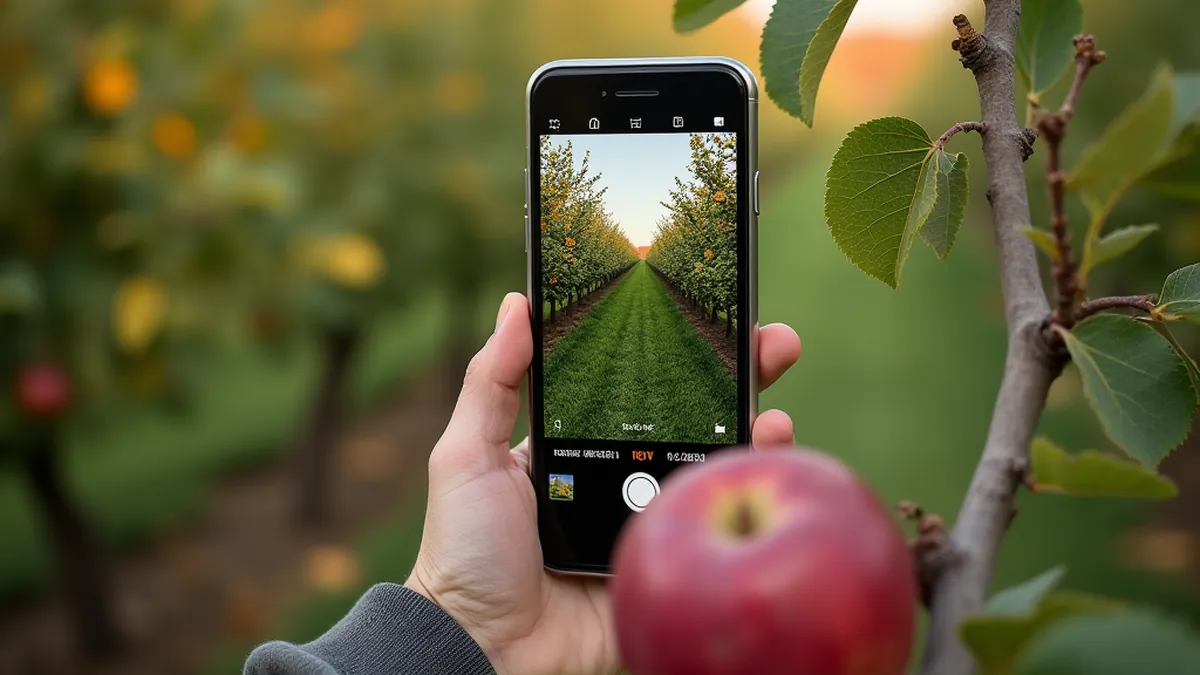
Inspect your plants with Seek before bringing them in
You are inspecting your plants before bringing them in, and you find a tiny critter on the underside of a leaf. Seek, iNaturalist's identification app, can put a name on it live, even without a connection, as long as you photograph it well and know how to read its answer. Here is how to use it, from the hand lens to privacy, along with the app's limits.
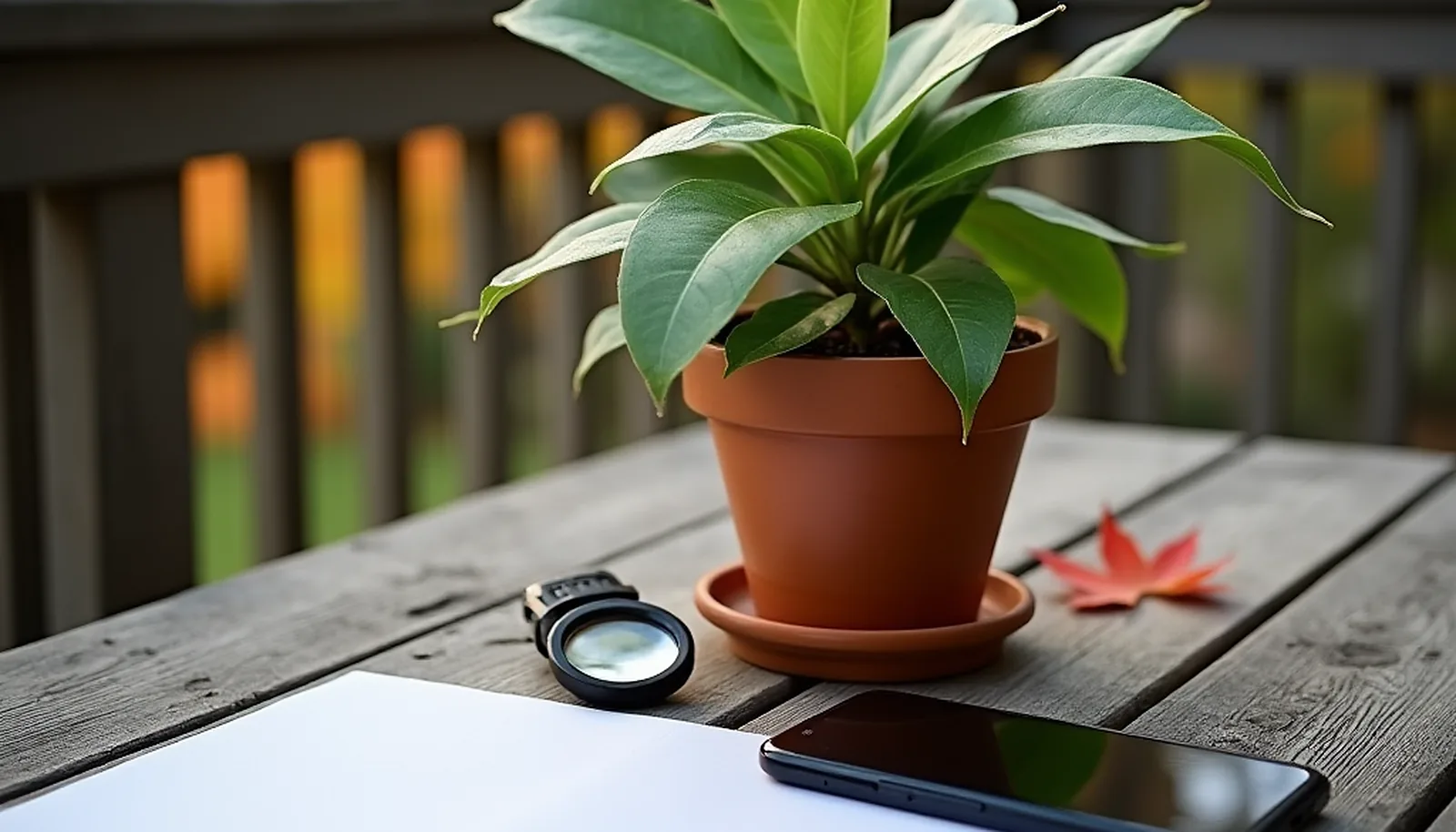
As nights get cooler, it is time to bring in the plants that spent the summer outdoors. Our complete method for bringing plants indoors without bringing in bugs explains when to do it and where to look before you cross the threshold: undersides of leaves, leaf axils, stems, potting mix, drainage holes. Whether it is your geraniums or your herbs, sooner or later you will come across a small critter you don't recognize.
That is where Seek, the identification app made by iNaturalist for Android and iPhone, comes in handy. We have already introduced Seek, iNaturalist and PlantNet in our article on how to identify a plant with your phone; we won't repeat that overview here. This one focuses on a single task: putting a name on what you find during the inspection, before you decide what to do.
What Seek brings to your inspection
You point Seek's camera at a living thing, and the app tries to place it in the tree of life. Its image recognition is based on observations posted to iNaturalist and identified by its community, its official page explains. According to iNaturalist's help pages, the identification appears in real time on screen, with no account and no Internet connection. Handy on a balcony, with a pot in one hand and your phone in the other.
Keep three things in mind. Seek gives you a name: to find out whether the critter is a problem and what to do about it, go back to the pest table in our complete guide. Its computer vision model is generally older than the one iNaturalist uses online, the help page notes. And its user guide says it plainly: the app doesn't know everything and can be wrong.
Since version 2.18, released in April 2026, Seek's camera has three new buttons, according to the release notes posted on the iNaturalist forum: a flash, a button to switch to the selfie camera and a location button. The flash and location will come in handy; more on them below.
Taking a photo Seek can read
Seek only sees what your camera shows it. The tips below come from the iNaturalist blog, the Seek user guide and the Insectarium de Montréal, which asks for the same kind of photo to identify an insect.
- Get closer rather than zooming. The iNaturalist blog recommends physically getting closer when you can. Zoom is still acceptable, but some phones reconstruct detail with software when you zoom in a lot: when in doubt, take a wider shot and crop it afterward.
- One organism in the frame. The Seek user guide warns that the app can get confused when several species are on screen. Aim at the critter, not the whole plant, and try other angles if it doesn't work.
- Focus in the right place. Tap the screen on the critter. If your phone insists on focusing on the leaf, put a finger near the critter, without touching it, and focus on your finger. A sharp photo with a finger in it beats a blurry one without, the blog notes.
- Mind the light. The Insectarium asks for direct light, daylight or a lamp, with no backlighting or heavy shadows. Seek's new flash helps under a leaf or in a dark corner, but according to the iNaturalist blog, a separate light source, such as a flashlight held off to one side, gives you more control than your phone's flash. When light is low, brace your phone against something solid.
- Try macro mode. First check whether your phone already has one: several recent models do. A clip-on macro lens, which is cheap, gets you even closer, but at that magnification, only a millimetre or two is in focus at a time. To focus, lock the focus, then slowly tilt the whole phone forward and back.
- Show the scale. A fingertip next to the critter is enough, according to the blog, because size can help tell species apart. It is especially useful if you post your photo or send it to someone.
- No AI editing. Cropping and adjusting the light are fine. Generative fill, removing parts of the scene or AI upscaling are not: they change what was there, iNaturalist reminds its users.
Have a recent iPhone Pro? In January 2026, to fix a bug that prevented photos from being saved, the iNaturalist team disabled the widest-angle lens in Seek (version 2.17.8). As a result, macro mode on these models doesn't work in the app. The team suggests taking the photo with the iPhone's default camera app, then importing it into Seek. The notes for version 2.18 don't mention macro mode coming back.
Same trick for a critter that won't sit still: film a few seconds and keep the best frame, as the blog suggests. The Seek user guide points out that an imported photo doesn't give you the camera's live identification.
Species, genus, family: reading Seek's answer
Seek doesn't always answer with a species name. Its user guide describes seven ranks, from broadest to most precise: kingdom, phylum, class, order, family, genus and species. When the app stops short of species, it may not be confident enough to suggest one. That is not a failure, just a less precise answer.
Take the twospotted spider mite (Tetranychus urticae), a mite that can infest over 200 species of plants, according to University of Minnesota Extension. It is an arachnid, not an insect. If Seek stops at the arachnid class for a tiny critter on the underside of a leaf, it isn't wrong: it is being cautious. The genus (Tetranychus) or the species would be more precise, but to decide what to do, knowing which group of pests you are dealing with is often what matters most.
| What Seek gives you | What it means | What you do |
|---|---|---|
| A species | Seek is confident enough to name it, but it can be wrong. | Compare with other photos of the species, then with the pest table in our complete guide. |
| A genus or family | It isn't sure enough to go all the way to species. | Take the photo anyway, as the Seek user guide advises. The group is often enough to know what to do. |
| An order, a class or broader | The photo lacks detail, or the critter is rarely observed on iNaturalist. | Retake the photo (closer, one organism, another angle), then ask for help. |
| Nothing useful | Many species can't be identified from a simple phone photo. | Hand lens, white paper and an expert's opinion. |
When Seek hesitates: the community and the Insectarium
Before giving up, try again using the photo tips. Then try the new location button, which decides whether Seek takes your location into account for its suggestions. According to the iNaturalist team, turning it off works better for things outside their usual range, like zoo animals or garden plants. Your tropical houseplant is one example, and a critter that came with it from the greenhouse could be another: compare both settings.
If Seek is still stuck, post your photo to iNaturalist. According to iNaturalist's help pages, users aged 13 and up, or younger with a parent's permission, can log in to Seek with an iNaturalist account and post their observations there. You can also use the iNaturalist app or the inaturalist.org website, as the Seek user guide suggests. Two advantages: online, iNaturalist uses its most recent vision model, and other members of the community help identify and confirm what you saw.
- Lead with your sharpest photo. iNaturalist's computer vision makes its suggestions from a single photo, the first one by default, the blog points out. Then add other angles and a view of the plant.
- Stay broad if you are unsure. The Seek user guide asks for an identification you are confident of, even if that means sticking to a broad group, such as plants or birds. For you, it might be insects or arachnids; the community will narrow it down.
- Protect your home address. Your critter was found at home. The Seek user guide describes two ways to protect the location: obscure it, so it shows up as a random point in a larger area, or not share it at all.
- The critter is wild, your plant is not. iNaturalist distinguishes wild organisms from captive or cultivated ones, meaning those placed there by humans, such as garden plants or pets. Your plant is cultivated; the critter that showed up on its own is not.
Would you rather ask a local specialist? The entomological information service of the Insectarium de Montréal (Espace pour la vie) is free. You send a clear photo through its online form, ideally from several angles, and its entomologists get back to you as soon as possible. Two exclusions to know about: it doesn't analyze photos of ants, including carpenter ants, or of ticks. If a photo isn't enough, the Insectarium has a procedure for sending it the specimen.
The limits: mites, eggs and damage with no culprit
The biggest trap during inspection is the critters you can barely see. The twospotted spider mite is about 0.5 mm (1/50 inch) long; it is yellow-orange, with two dark spots, according to the University of Minnesota. Its Extension service recommends looking closely with a hand lens at the undersides of discoloured leaves, and holding a white sheet of paper or a piece of cardboard under suspect leaves, then shaking them to see the mites fall. Fine webbing also gives them away. In macro, with a millimetre or two of sharpness, you have to aim carefully for a critter that size.
More broadly, the Seek user guide warns that many species can't be identified from phone photos, because they require microscopic examination by an expert. It adds that Seek is best at recognizing species with lots of observations on iNaturalist.
Faced with eggs or tiny dots and no visible critter, don't fight with the photo: look for the adult. Shake the plant over the white paper, check with the hand lens and inspect again during quarantine; our complete guide explains how long to isolate a plant you bring in.
One last trap: damage with no culprit. Seek is designed to identify living things, according to its official page, and a damaged leaf doesn't necessarily show it the culprit. Leaves speckled with tiny white or yellow dots may be the work of spider mites, but the University of Minnesota notes that these symptoms can be confused with drought stress. If all you find is spots, our 5-photo method for diagnosing a sick plant with AI will serve you better.
Privacy: what Seek keeps on your phone
It is one of Seek's strong points, spelled out on its official page: no registration, and no user data collected. The app asks for permission to use your location, but it is obscured to respect your privacy, while still allowing species suggestions from your general area. Your precise location is never stored in the app or sent to iNaturalist, the page states.
iNaturalist's help pages add that the data you record doesn't leave your device, and that no personally identifiable information is collected if you don't log in with an iNaturalist account. The flip side, according to the user guide: since everything is stored on the phone, deleting Seek also deletes your observations. To keep them when you switch devices, follow your operating system's transfer instructions.
Everything changes if you post to iNaturalist. The observation is then recorded in its database with your photo, place and time, and becomes public data: hence the value of obscuring the location when the critter was found at home. And if you would rather Seek not use your location for its suggestions, the location button added in version 2.18 does that too.
Remember the sequence: a sharp photo of a single critter, an answer read at the right level, the community or the Insectarium when Seek hesitates, and the hand lens for what no camera can see. For the next steps (cleaning, treatment, quarantine), go back to the complete method. And if you wonder whether all this care is worth it, we sorted out the benefits of houseplants: what is proven, and what isn't.
Sources
- iNaturalist Updates for April 2026, iNaturalist forum (iNaturalist team), 2026.
- App not logging observations or saving pictures (iNaturalist team replies, January and February 2026), iNaturalist forum, 2026.
- Seek by iNaturalist, iNaturalist.
- What is the difference between iNaturalist and Seek by iNaturalist?, iNaturalist Help, 2025.
- Seek User Guide, iNaturalist, 2020.
- Smartphone Photography for iNaturalist, iNaturalist blog, 2026.
- Twospotted spider mites in home gardens, J. Hahn and S. Wold-Burkness, University of Minnesota Extension, reviewed 2020.
- Entomological information service, Insectarium de Montréal, Espace pour la vie.
Frequently asked questions
Does Seek work without Internet access or an account?
Yes. According to iNaturalist's help pages, Seek does not need an Internet connection to work and does not require an account. An iNaturalist account only matters if you want to post your observations to iNaturalist, from age 13, or younger with a parent's permission.
Can Seek identify spider mites?
It is a tough case. The twospotted spider mite is about 0.5 mm long, and in macro, only a millimetre or two is in focus at a time. Check the undersides of leaves with a hand lens and shake them over white paper. If Seek stops at the arachnid class, post your best photo to iNaturalist or send it to the Insectarium de Montréal.
Why does Seek stop at the genus or family?
According to its user guide, the app may not be confident enough to suggest a species. Retake the photo with a single organism in the frame and from another angle, try with location turned off, then post to iNaturalist if you want to go further: the online model is more recent and the community can confirm.
Does Seek keep my photos and my location?
According to its official page, Seek collects no user data, obscures your location and never stores or sends your precise location. Your observations stay on your phone: deleting the app deletes them. If you post to iNaturalist, the observation becomes public with your photo, place and time, unless you obscure the location.
Why doesn't my iPhone's macro mode work in Seek?
In January 2026, to fix a bug that prevented photos from being saved, Seek version 2.17.8 disabled the widest-angle lens, which blocks macro mode on recent iPhone Pro models in the app. The iNaturalist team suggests taking the photo with the iPhone's default camera app, then importing it into Seek.